

Teachers Pay Teachers (or TPT) strives to help educators by providing a space to buy and sell original educational resources. Whether across the city, state, country, continent or world, we can recognize there is something special about using resources created by teachers who understand what works in a classroom. You, too, have this special something and can help others by setting up a store.
It is pretty easy to get a store started. We all create resources to help ignite learning in our own classrooms. Picking out the perfect name for your store and reviewing copyright laws are amongst the harder aspects of getting it up and running. To get your products to others, much like in the 1999 movie Office Space suggested, it’s the atmosphere and attitude that helps to catch their attention. Your store can provide a space to truly express yourself and “you do want to express yourself, don’t ya?”
Canva is a wonderful tool to efficiently and effectively add just the flair you need! As you have probably seen in the recent blog post series, Canva is a 100% free online tool that you can use to design all sorts of graphics. It is a cloud-based, online website that can be used on any device and from anywhere. It saves all of your work online so you can open up your designs any time and any place. Canva works for any device that you have – Chromebooks, laptops, tablets and they even have an app! Canva Pro is also available to educators for FREE! This allows you access to:
- More photos & elements to use in your design
- More fonts or ability to upload your own
- Resizing your designs into any format
- Create animations & gifs
Adding Flair to Your Teachers Pay Teachers Store Using Canva
There are 5 ways that the Teachers Pay Teachers website allows you to personalize your store beyond the basic store setup. All of these can be created on the Canva website!
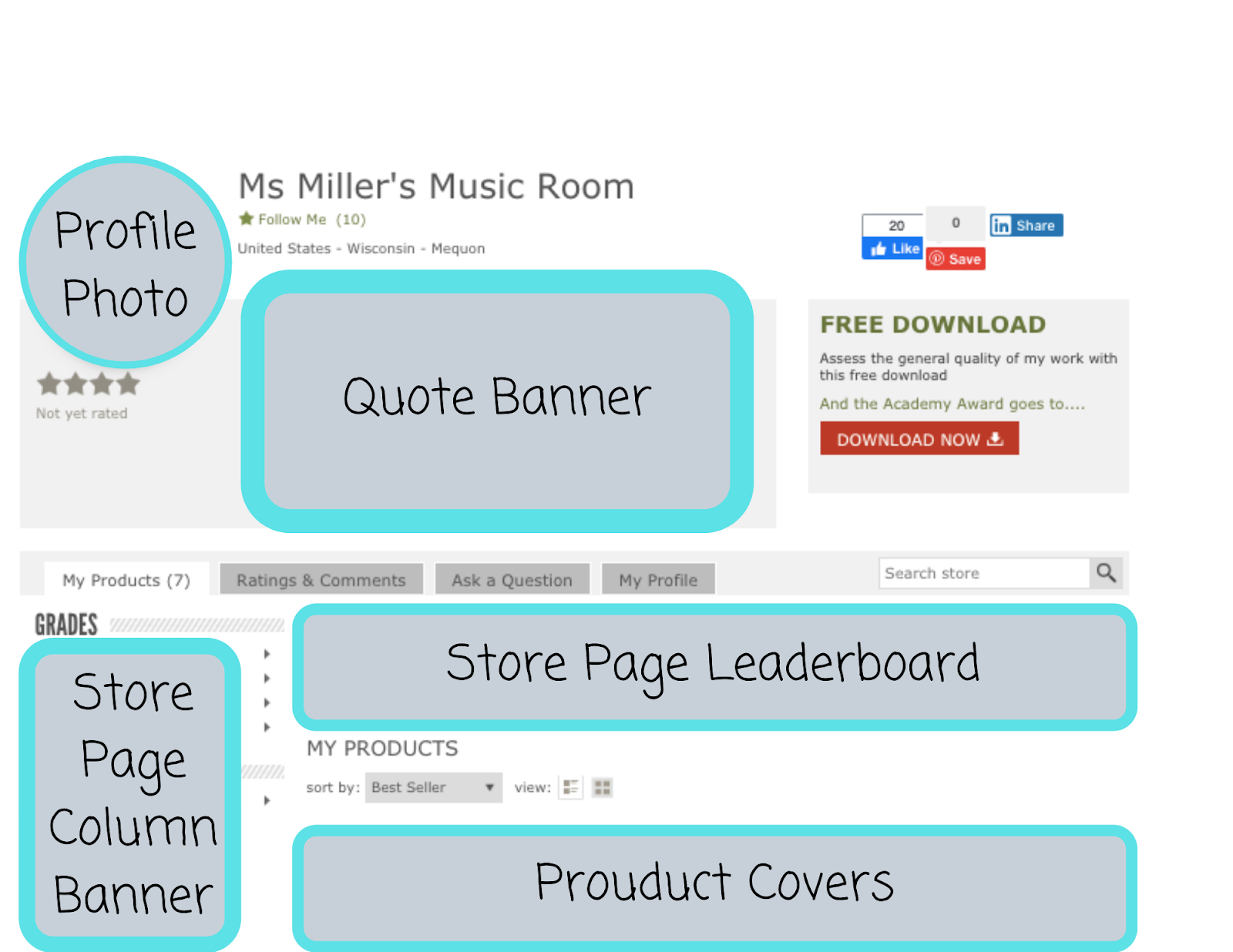
1.Profile Photo/Logo
The profile photo appears at the top of your TPT store. It is an image that represents you and what your store is all about. It is a perfect opportunity to create a logo as a visual representation. Within Canva, you can begin to design using the logo template. Designing in this template will provide the perfect size logo, 500 x 500 pixels, to fit into the profile photo spot. As you are designing remember—the logo you create will eventually be cropped into a circle on the Teachers Pay Teachers website!
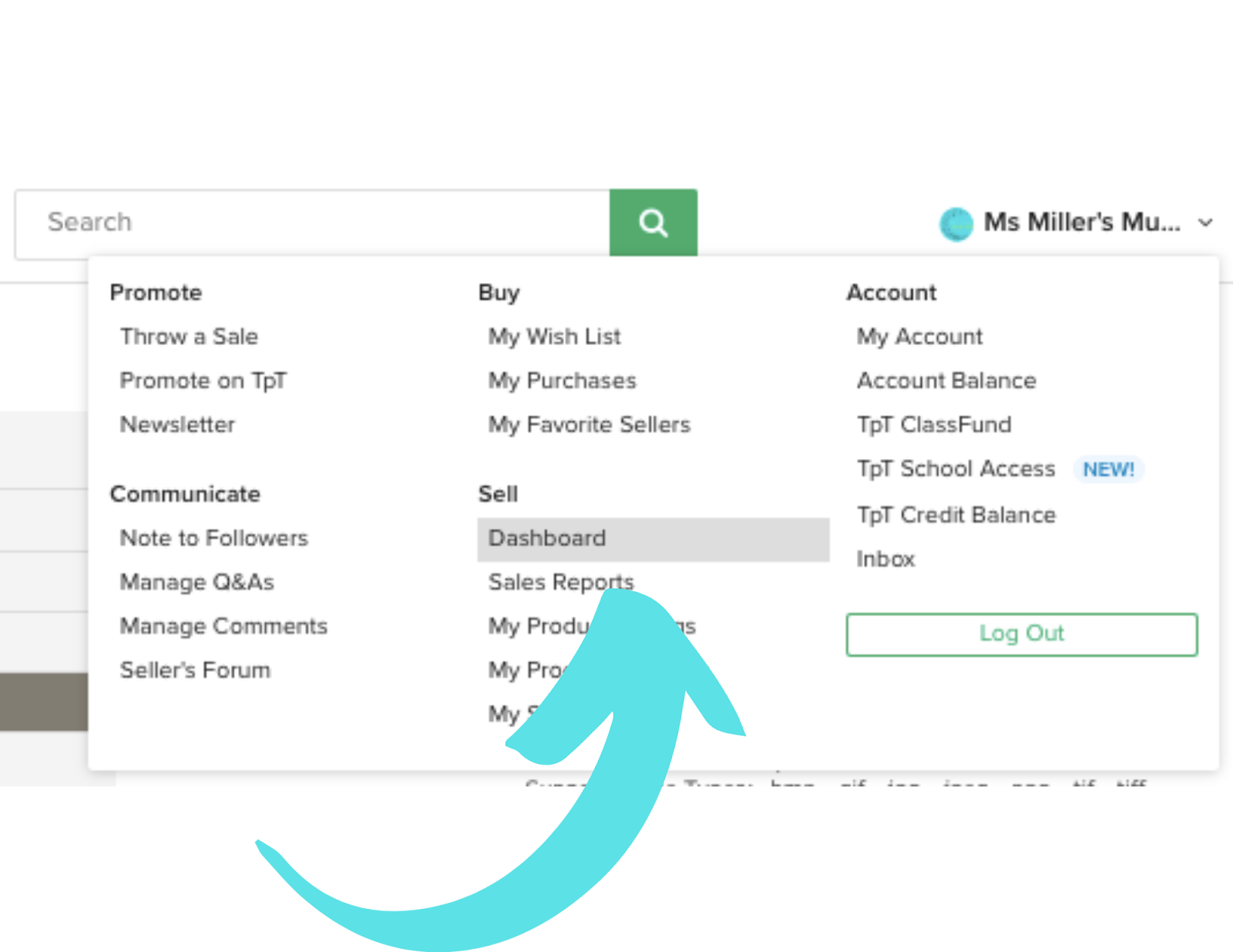
Once you have finished your logo design using the tools available in Canva, you can change your profile photo in your store by going to your seller dashboard.
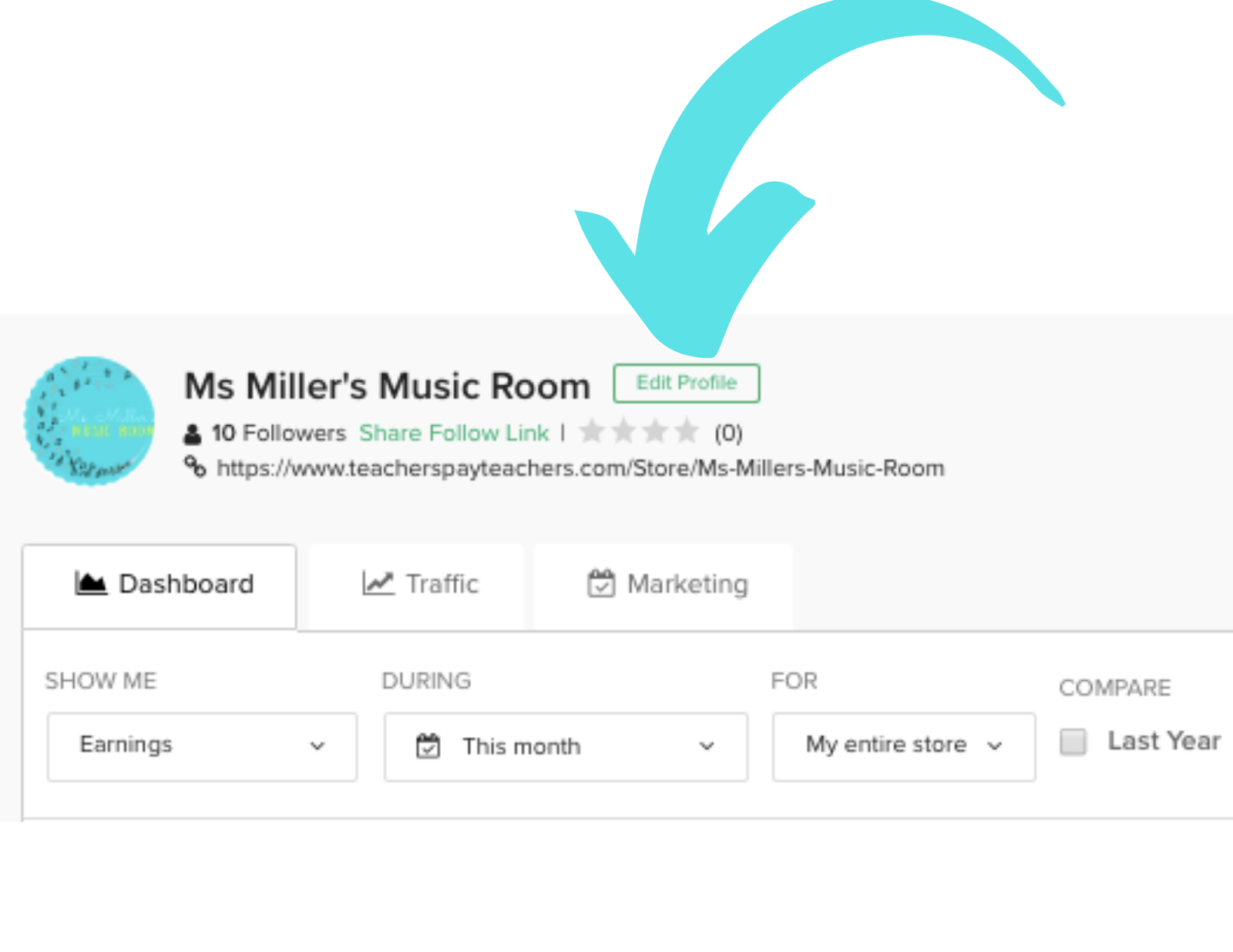
Once you are on the dashboard, you want to “edit profile” which you can find right next to the name of your store.
2. Quote Banner
To avoid greeting your customers with the dreaded box that says “yet to add a quote”, you can welcome them by designing a quote banner. This appears to the right of the fabulous logo you have created and just under your store name. It is a great opportunity to highlight important features of your store, products you have just added or would like to draw attention to or just express your gratitude for the visit. Within Canva, you can create the perfect size banner by using the custom size feature. Your quote banner should be 452 x 157 pixels.
You can add your creation to your TPT store in your profile, just like you did for your logo. (Dashboard—>Edit profile). You will see the option to add a text quote or a link/image. The link/image option is what you need to choose in order to upload the .png file from Canva.
3. Store Page Leaderboard
The Store Page Leaderboard is another space you can use to make your store visually appealing to visitors. It will be located at the top of your product listings. It can provide another space to highlight your store name, the purpose for creating your store or to add a seasonal design element. Canva has a template that works perfect for creating this part of your store called Leaderboard Ad. It is 160 x 200 pixels.
To upload your layout from Canva to Teachers Pay Teachers, you will once again enter the dashboard. From there, you need to select the Marketing tab.
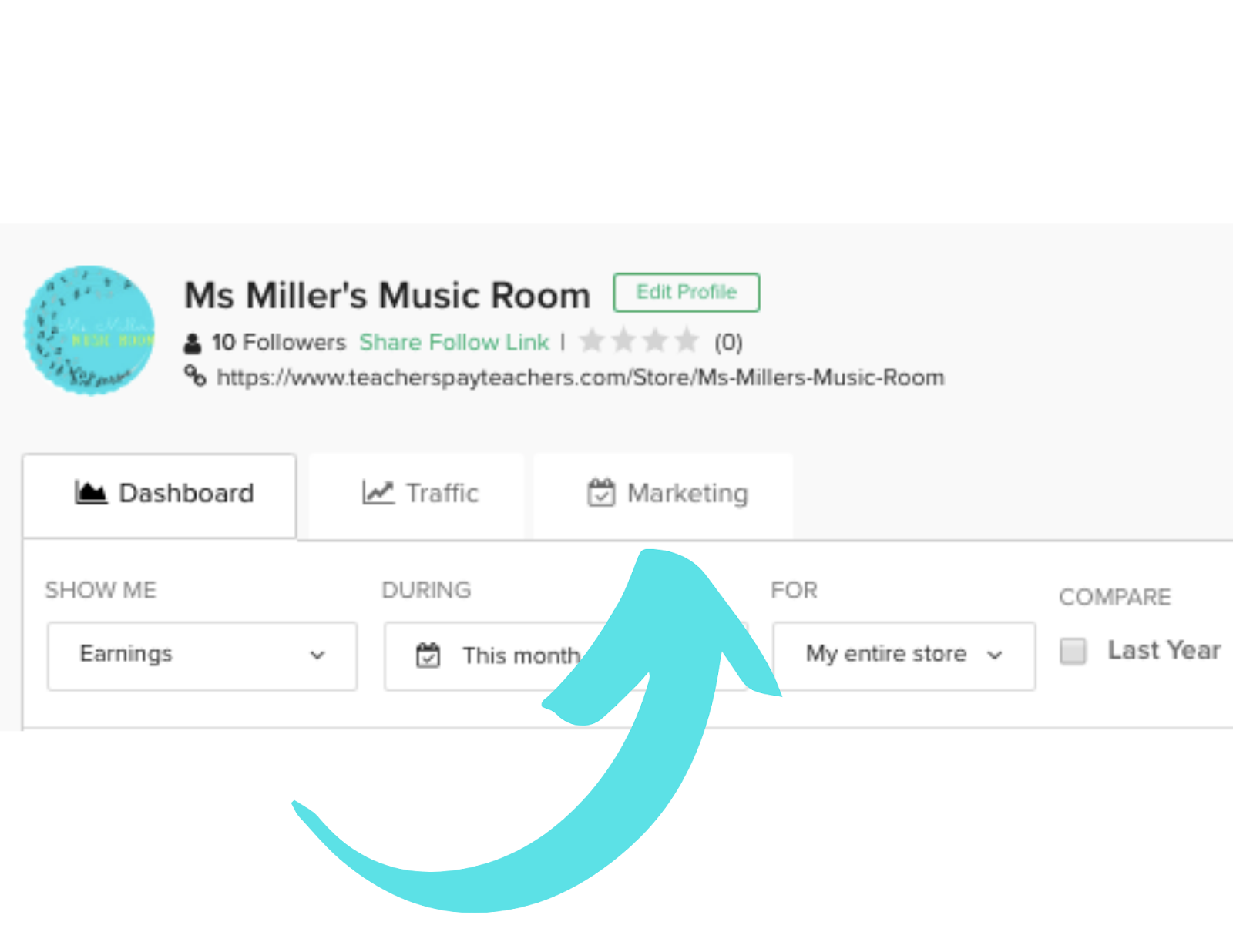
Then, choose customize.
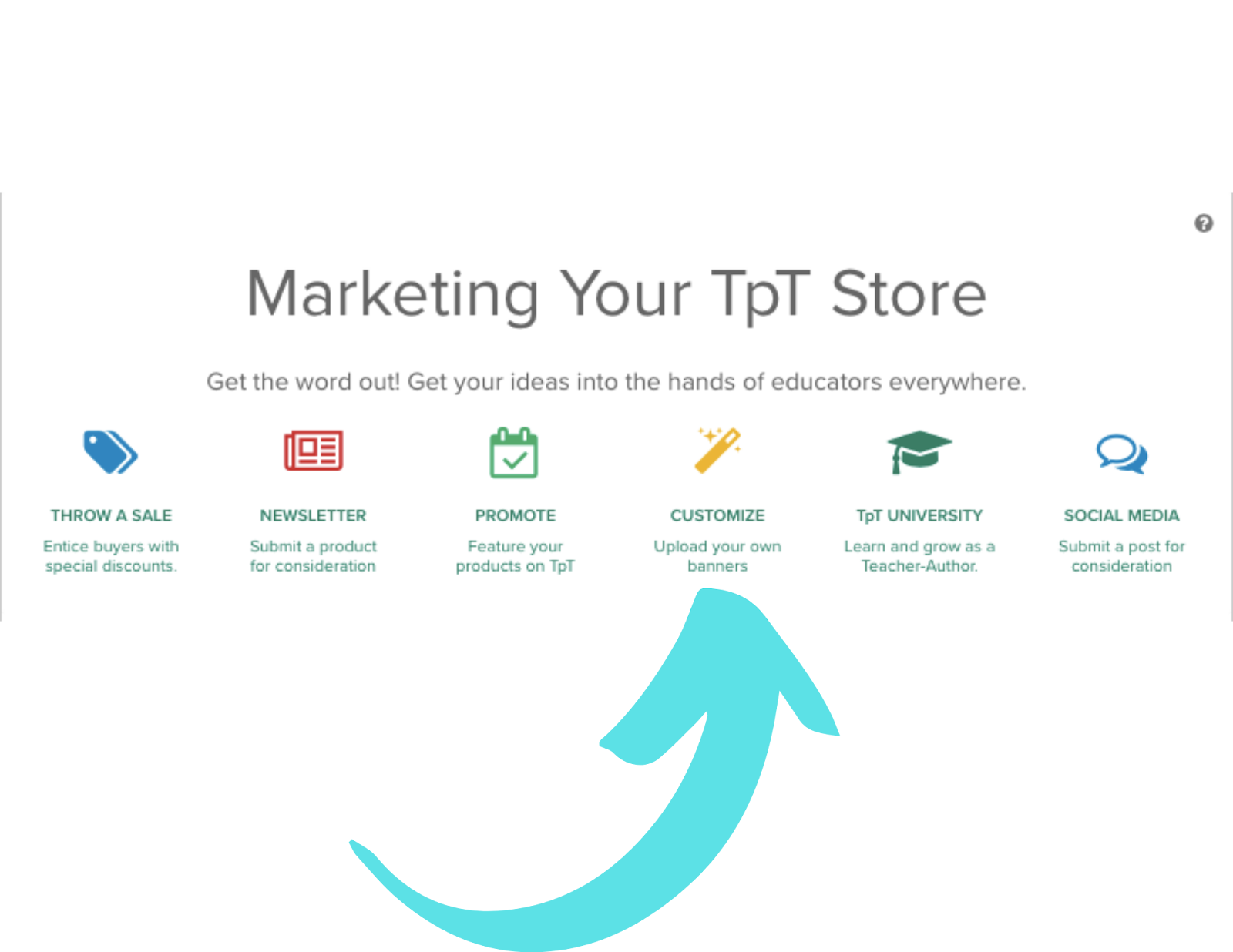
4. Store Page Column Banner
Under the customize menu, you will also see the Store Page Column Banner. This customization will appear to the left side of your product listings under your resource types. You could use this space to add a quote, important information about the setting where you teach or other ways visitors can connect with you and your classroom online. Within Canva, you can create the perfect size banner by using the custom size feature. Your quote banner should be 160 x 200 pixels.
5. Product Cover/Thumbnails
Last, but maybe the most beneficial use of Canva in your Teachers Pay Teachers Store, is creating product covers and thumbnails that represent each of the resources you have created.
The product cover is the first impression. This is the purpose of your store! These designs should provide the customer with a description of the resource as well as provide them with a visual example of what the resource looks like. Canva’s design features can help you to find the right balance of attractive design and information all within a square layout that will appear next to the title of each product you list.
Thumbnails can be auto generated by the TPT website in order to see what is included in the product. However, you can also create these thumbnails to truly capture the objective, strategies used and materials included for the educators that would like to purchase the resource. Although you can type out a clear description, the famous saying of “a picture is worth a thousand words” may stand true in this case.
Canva is a great tool for helping to personalize your Teachers Pay Teachers store, along with so many other things. I particularly love it for this purpose because it is so easy to create unique and effective graphic design for anything you want. Canva also allows you to design the perfect size image for any purpose. Lastly, you can resize any project you have made to add flair to your store without having to start from scratch every time. This helps to build uniformity in your store and, ultimately, a brand that represents you and the amazing original resources you provide to students within your classroom. There is nothing more special than that…which is why we want to buy it!
Download your copy
Would you like to take a copy of this with you? Click the button below and a copy of this will be sent directly into your inbox.
Want more help with creating beautiful teaching resources?
Be the first to join my brand new course…“Create Beautiful Teaching Resources, Fast” Online Course!
Create Beautiful Teaching Resources, Fast is an online, self-paced course for teachers who want to create amazing resources for their classroom.
In this course, you will go from feeling overwhelmed, time-poor and lacking ideas to feeling like a smart, savvy designer who can quickly make custom teaching resources that are worthy of selling on Teachers Pay Teachers.
The Waitlist will get first access to join the course PLUS a special bonus upon joining the program! Join the waitlist to get exclusive, priority access.




25 Comments
Hi Katie,
I am new to TpT and found this very helpful, thanks.
I’d like to ask you a questions, I am very familiar with Canva and use it to create my resources. I am wondering, when I download the PDF and get a flattened file, is it ok to upload that straight to TpT? Or do I need to manually flatten the file myself.
Thanks in advance
I believe that’s ok since it means that all the separate elements can’t be “lifted” but I think maybe some TpT sellers choose to do an extra step or two like you said (I’m not sure if necessary though!)
Is it considered copyright to use Canva templates and create your own things? I would love to use it but I am scared!
You are permitted to use all the free elements for commercial and non-commercial use. You might need to check the usage rights associated with any elements that are in their “Pro” collection if you’re going to add them to products you’re intending to sell. There’s licensing info about the free elements herethe free elements here (I haven’t found a link for the pro elements)
Can I use clip art from another resource and upload to create? If so, and other canva users can use it?
Hi Darla – yes, you can upload clip art, photos and other images from other places to use inside Canva. They will only be available to you inside your account (they won’t end up in the general Canva library for anyone to access)
Thank you! This was fabulous!!
Thanks Julie!
Another question…I am assuming you cannot use name brand icons/clip art and create products to sell on TPT Correct? For example…the amazon logo included in a car bingo game?
Yes I think that would be correct.
Can I use canvas to create commercial cover pages for TPT?
Yes you can, but you need to be aware of the licensing agreements for the elements (clipart, photos, frames, shapes etc) in the Canva library. The free elements are fine to use and you can upload your own to use in your designs too.
However, the “pro” elements fall under a different license agreement. There’s more info about the licensing here.
Just to confirm, things like clipart and elements from TPT education suite – are not part of the pro that may require a different license agreement?
I’m not quite sure I understand your question, but what Canva has told me in the past is that you can use the elements that are marked “free” in their Elements library in Tpt designs that you are going to sell. Since we wrote this blog post (a couple of years ago), Canva have added a clause in the license agreement which states that the Education accounts must only be used for non-commercial purposes. You can set up a separate account for creating designs that you want to sell on Tpt but would also need to follow the license guidelines for using the pro content which are here: https://www.canva.com/policies/content-license-agreement/ Hope that helps! It’s best to contact Canva directly for more info if you need anything else clarified
Hi there, could you include more information about the pixel size and download type for the thumbnails. I use Canva and have done almost everything you wrote about, but I’m having trouble with the thumbnails looking good. Thanks!
Hi Lydia – is this for Tpt product thumbnail images? If so, they recommend images of at least 750 pixels and a file size of less than 2MB. It’s usually best to download them from Canva as a PNG file.
Do we need to Copy right / reference Canva when we use it in TpT?
My understanding is that if you use the free elements, you don’t need to attribute the creator. If you use the “pro” elements they fall under a different licence. There’s some more information on this page about their terms of use.
This looks like an awesome resource but the copyright with images and templates used in Canva to create products is unclear to me. Is there a resource that explains what you are able to sell on TpT that was created in Canva using templates and graphics?
You’re right – it’s been difficult to find clear information about this! I’ve now heard from the Canva people directly about it and you are ok using any of their free media (images, clipart etc) in your designs even if you want to sell them. The free templates can also be used as the basis for a design, but you need to alter them in some way and can’t resell them “as is”. Any pro/paid elements fall under a different licence that will incur a cost (it varies depending on usage). Here’s a link to the Free Media Licence info.
Hi ????♀️
Thank you for this great blog! Can I use my Canva education account for creating and selling TPT resources?
Thanks ????
Cindy
I have that same question. Since Canva Education is basically pro but we don’t pay can we still make worksheets and units with those graphics and sell them on TpT?
I went searching for this yesterday. My understanding is the the licensing agreement for the educational account is only to be used for educational purposes which means you couldn’t actually use your free Canva educators account to then make money?
From my research, educators would need to purchase pro in order to sell.
Hi there,
Thank you. I have used Cava in many ways you listed, but I am now hoping to sell a presentation I made on Canva. I was able to download it as a movie, but then teacher notes were gone and the format was off. What do you suggest for PowerPoint-style materials Canva in order to sell it on TPT?
Please let me know if I need to clarify,
Thanks.