


This is a guest post by one of our teacher-authors, Katherine Miller.
There is so much to love about Canva! If you are not familiar with it yet, Canva is an online design tool that makes creating your own media so simple. The list of great things about this site is a long one, but near the top has to be the fact that it is always growing and getting better with new updates and tools.
Here are nine recent updates (and a few lesser-known features) that I have been able to utilize when designing media for my own classroom.
(Before you continue reading, make sure you have your FREE teacher’s account – click here!)
#1: Create a GIF

Although Canva has always included a variety of options on how you would like to download your designs, you might not know that creating a GIF is one of those options! A GIF is several images or frames combined into a single file to add movement and interest to any design.
To make your own GIF, start with creating your design.
Next, select the text or other objects and choose an animation style (ie: rise, pan, fade, pop, etc.) Don’t forget: Within the elements available in Canva, you can even choose to add animated graphics to make your GIF really pop.
Once you are done designing and ready to download, make sure you change the download format to GIF with a transparent background.
#2: Tables
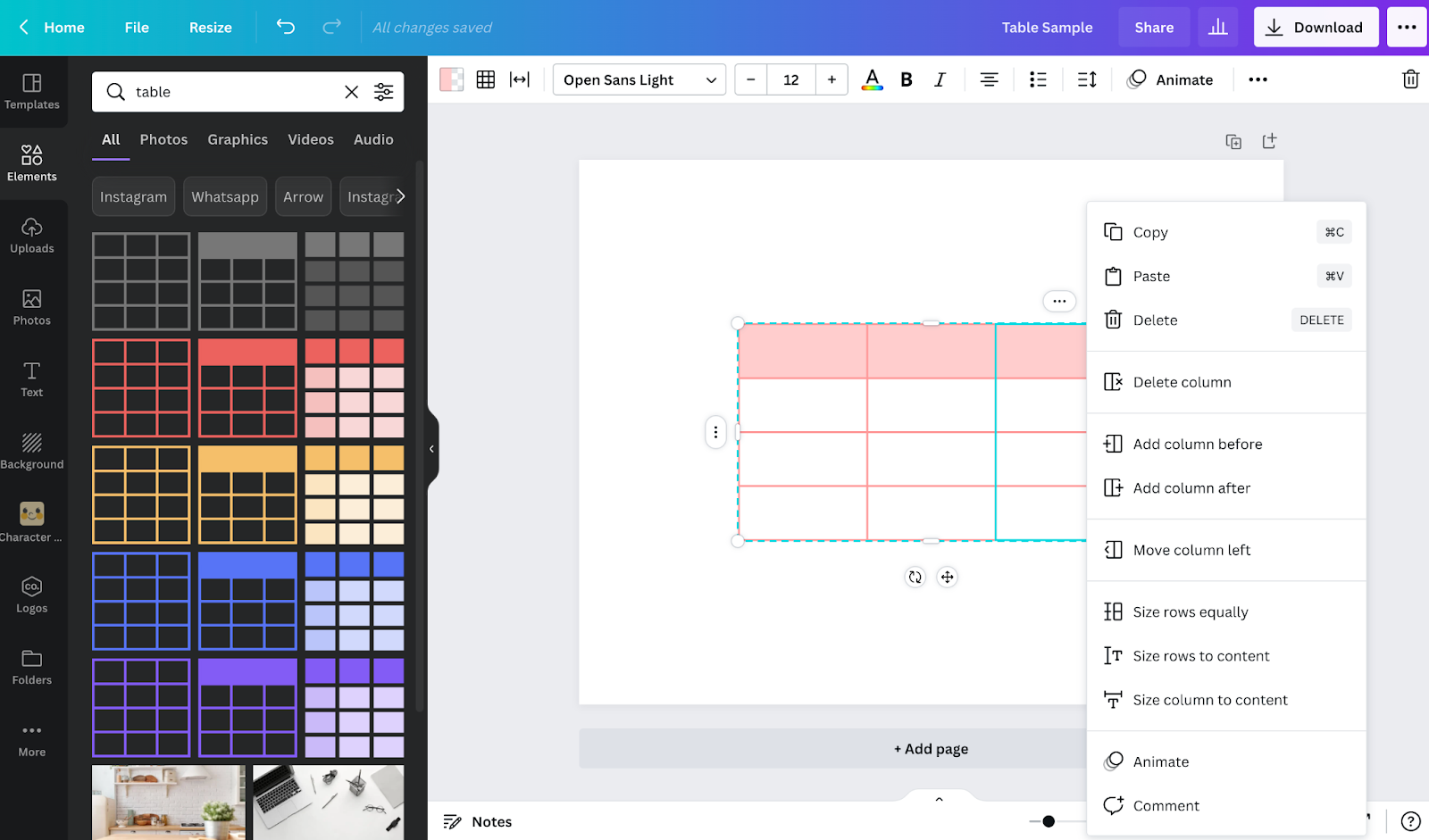
An exciting update for many teachers is the addition of tables!
To add a table:
- Click on Elements and scroll down to the table options
- Choose the table that suits your needs
- Once it is added to your design, click on the 3 dots to further personalize your table options
#3: Curved Text
Another simple, and impactful update is the addition of curved text. This effect can be added to any text by selecting the text and choosing “effects” on the top menu. Once you have selected “curve”, you can use the slider to adjust as needed.

#4: Tidy Up
The templates in Canva can make anyone a digital media designer however there are times when you want to create your own from a blank canvas too. With features like tidy-up, creating your own designs can be just as easy.
The tidy-up feature allows you to easily position elements that you add to the page with the click of a button. This tidy-up button is found when you select all of the items you want to align. Once they are selected, you can click “position” and then “tidy up”.
Here is a quick example of how I used this feature to create a treble clef staff (click the play button on the image below to view the video):
#5: Build a Character
Under the “More” menu on the left-hand side of the screen, Build a Character will allow you to assemble your own characters from a series of heads, bodies, and facial expressions with a variety of diverse features.
These characters could be used to create play-along videos, visual cues for students on resources/signs like the movement signs pictured below, or even to make fun characters to add to your classroom newsletter, classroom worksheets, or handouts.

#6: Integrated Apps
There are also a ton of other integrated apps located under the “More” tab which makes adding additional media to your designs so easy.
This means rather than having to upload images or pictures onto the Canva website, you can access what you need directly from any of the apps that are integrated.
Some of my options for adding to my designs are:
- Bitmoji
- Pixton
- Google Photos

#7: QR Code Generator

Canva allows you to generate a QR Code for any media without using an additional website. This comes in super handy when creating activities for your classroom or even access to digital programs for audience members to access.
It is as easy as:
- Copy the link you want to include in the QR code
- Go to “More”
- Choose QR code
- Paste your link in the text box
- Press “Generate code”
#8: Video Creation

No need for any additional programs when creating video media for your classroom! Canva can help you with that too!
To begin your video media project, choose “video” from the main Canva home screen. You can continue by choosing the ideal size of your video. From there, you can begin to do simple edits including screen animations, timings, and still have all of Canva’s typical features like templates, elements, and text options.
The added bonus for musicians is the ability to add music to your video creations.
You can do this by navigating to the “More” tab and choosing “audio” from the listed options.
To import your own audio, simply go to the “Uploads” tab and select your own audio file.
#9: Content Planner
If you use social media as part of your communication with students, families, or the community, Canva has a content planner which will allow you to schedule when your designs will be posted to many popular social media platforms.
When you click the “Share” button, you can sign-in to any of your social channels and post directly!

Final Thoughts
We would love to hear from you: What are your favorite features? What features would you like to see Canva add in the future? Leave a comment below!
More Blogs About Canva from Midnight Music
- How to Design Your Classroom Theme in Canva
- 5 MORE Cool Canva Tricks for Designing Teacher Resources
- How to Use Canva to Merge Technology Standards and Content Standards
- Our Top 10 Keyboard Shortcuts for Canva for Teachers
- How to Use Canva to Create Your Teachers Pay Teachers Products and Store
Download your copy
Would you like to take a copy of this with you? Click the button below and a copy of this will be sent directly into your inbox.
About Katherine Miller

Katherine (Katie) Miller holds a Bachelor of Music in Education degree from Otterbein University (Westerville, OH) and a Masters of Educational Leadership from Antioch McGregor Midwest (Yellow Springs, OH). She has 15 years of professional musical experience as a music educator and performer.
She is currently employed by the School District of Waukesha in Waukesha, WI, where she teaches K-5 General Music and serves as a district model tech classroom. She was recognized in 2018 as a WPT Education Innovator by the Wisconsin Public Television Education team. Twitter: K8TMiller
Looking for More Resources for Music Teachers?
Hello! I’m Katie Argyle – an Australian music technology trainer and consultant with a passion for helping music teachers through my business Midnight Music.
I’m a qualified teacher but no, I don’t currently teach in a school. I help teachers through my online professional development space – the Midnight Music Community – where there are tutorial videos, courses, links and downloadable resources.

I like to focus on easy ways to incorporate technology into what you are already doing in your music curriculum through a range of creative projects. I also run live workshops and have presented at countless conferences and other music education events.
If you want simple, effective ideas for using technology in music education, I would LOVE to help you inside the Midnight Music Community.




4 Comments
I am excited about the QR Code in Canva. Instead of printing programs for my elementary concerts, I just post a QR code. Saves on paper and time.
That’s such a brilliant idea! I hadn’t thought of that. Will totally do that from now on! Thanks for sharing.
Yes agreed! I’ve been showing that application of QR codes in workshops for a number of years now and it’s still not widely used by teachers/students. Good for you!
That’s such a brilliant idea! I hadn’t thought of that. Will totally do that from now on! Thanks for sharing.