Written by Katrina Proctor, Content Manager at Midnight Music
It feels like everyday, Canva is releasing a new update that changes the game. With the recent release of the Magic Studio, there are heaps of new AI tools that take ideas and visions you have for the content you want to create and turn them into reality. Recently on the blog, we introduced you to Magic Media, Magic Switch, and Magic Design, but today, we’re showcasing three MORE insanely cool Canva AI tools: Magic Write, Magic Animate, and AI Photo Editing.
Before we dive in, you may be feeling some hesitancy around AI tools, and this is completely normal! One of the best ways to deal with this skepticism is to practice and teach good digital citizenship when using AI tools, especially with students. Practice and demonstrate fact-checking your sources, always give AI-created content a good look-over for accuracy and inject your own voice and style into the writing. AI content should always be a jumping-off point, not the final product.

A Quick Intro to Canva
If you’re new around here, you may not yet be familiar with Canva. Canva is a vast design tool that is built for beginners and advanced designers alike – especially teachers! Canva offers a free Canva account for educators by joining their Canva for Education platform.
Inside you’ll have access to millions of pieces of clipart, hundreds of fonts, pre-created templates, and tools to create things like:
- Worksheets
- Classroom Art
- Concert Programs
- Lesson Presentations
- Videos
- Social Media Posts and so much more!
Recapping Canva AI Tools
If you missed out on our other blog post, we introduced you to Canva AI tools that are all a part of the new suite of tools called Magic Studio. Magic Studio comprises 11 new tools that use AI to edit photos, craft new clipart, design new videos, and even design new templates for yourpurposes. If you’d like to learn more about Magic Media, Magic Design, and Magic Switch, head over to that blog to catch up!
Now let’s look at 3 new Canva AI tools from the Magic Studio: Magic Write, Magic Animate, and Magic Edit.
Magic Write
Canva’s Magic Write is an innovative tool that all music teachers can use in their content creation process. Using the power of artificial intelligence with OpenAI (the same model that ChatGPT is based on), Magic Write transforms prompts into a comprehensive first draft in no time – all without leaving Canva. It’s a feature that not only makes the content creation process faster, but also helps avoid the dreaded ‘writer’s block.’ For more detailed information, you can visit Canva’s Magic Write page and Magic Write for Education for education-specific prompts and ideas.
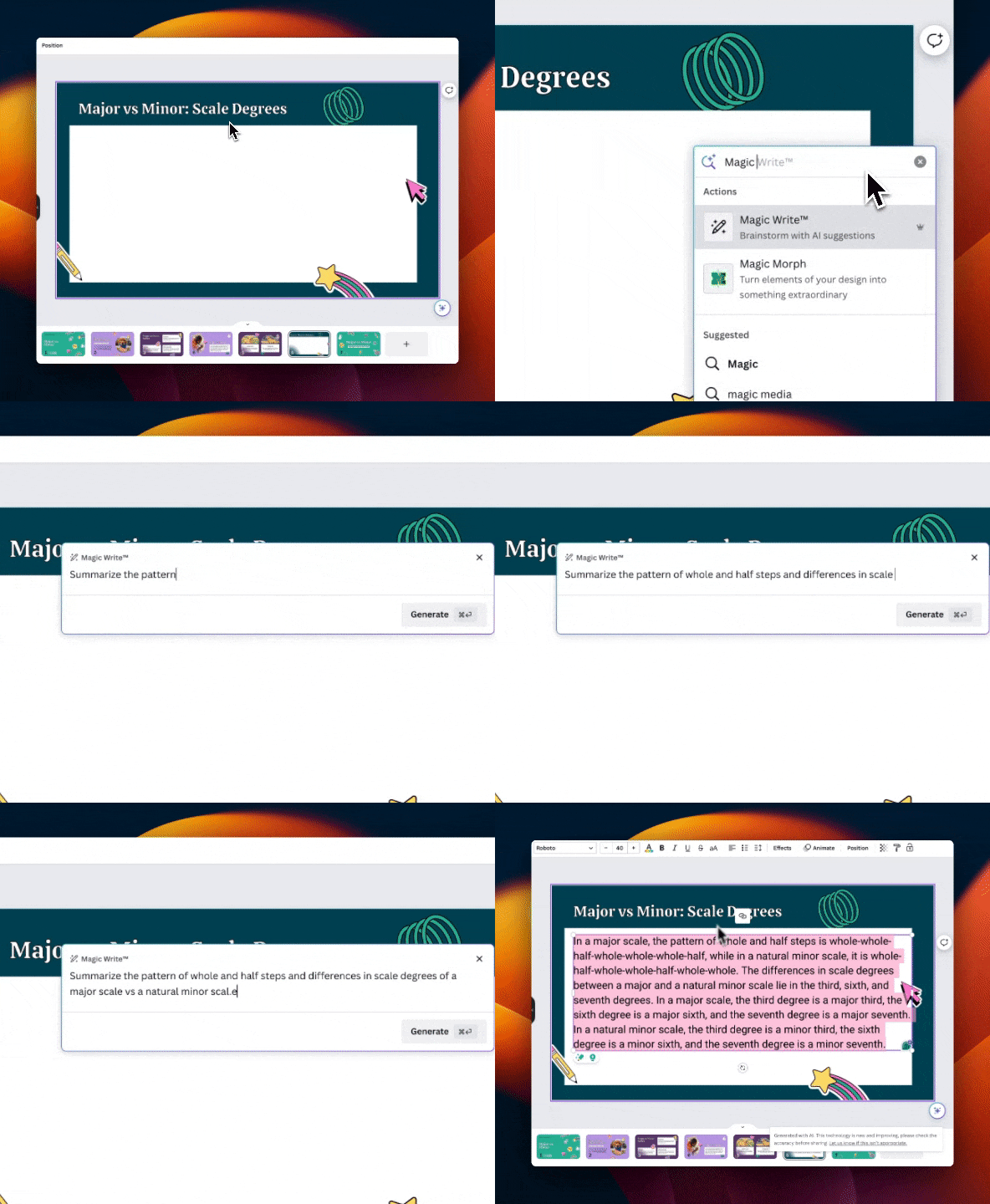
Using Magic Write is pretty straightforward: music teachers simply input their desired text or prompts into the tool, and the AI-powered feature generates a response. You can use Magic Write for things like rewording sentences or paragraphs, summarizing or expanding text, listing ideas for new content or strategies, and grabbing quick information (though always check AI content for factual accuracy)!
How Magic Write Works
- Open up any Canva design.
- Click on the ‘Canva Assistant’ in the bottom right corner.
- Type in ‘Magic Write’ into the box.
- Describe the information you need in the box and submit.
Magic Animate
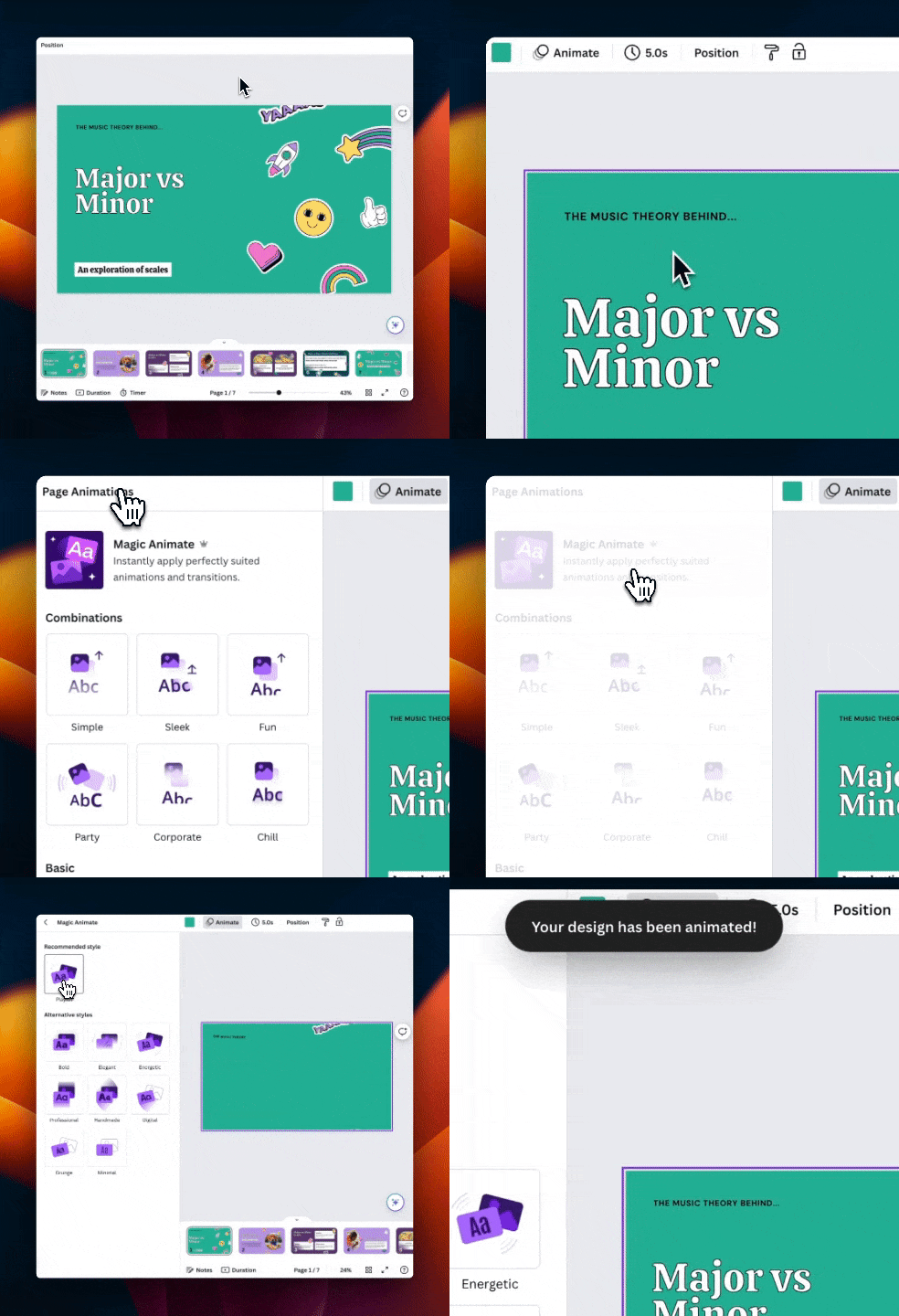
Canva’s Magic Animate feature is a big time-saver that dramatically enhances your presentations in the quickest way possible. It uses artificial intelligence to add animations and transitions across all slides, eliminating the need for manual selection and positioning of animations. With just a single click, Magic Animate breathes life into your design.
How Magic Animate Works
- Open an existing Canva presentation or create a new Canva presentation.
- Click on any slide in your presentation.
- Select ‘Animate’
- Select ‘Magic Animate’
- Choose either the pre-chosen style or preview all of the other available magic animations.
- Your entire presentation is animated and transitions are added between each slide.
BONUS: Canva’s Motion Path Animation
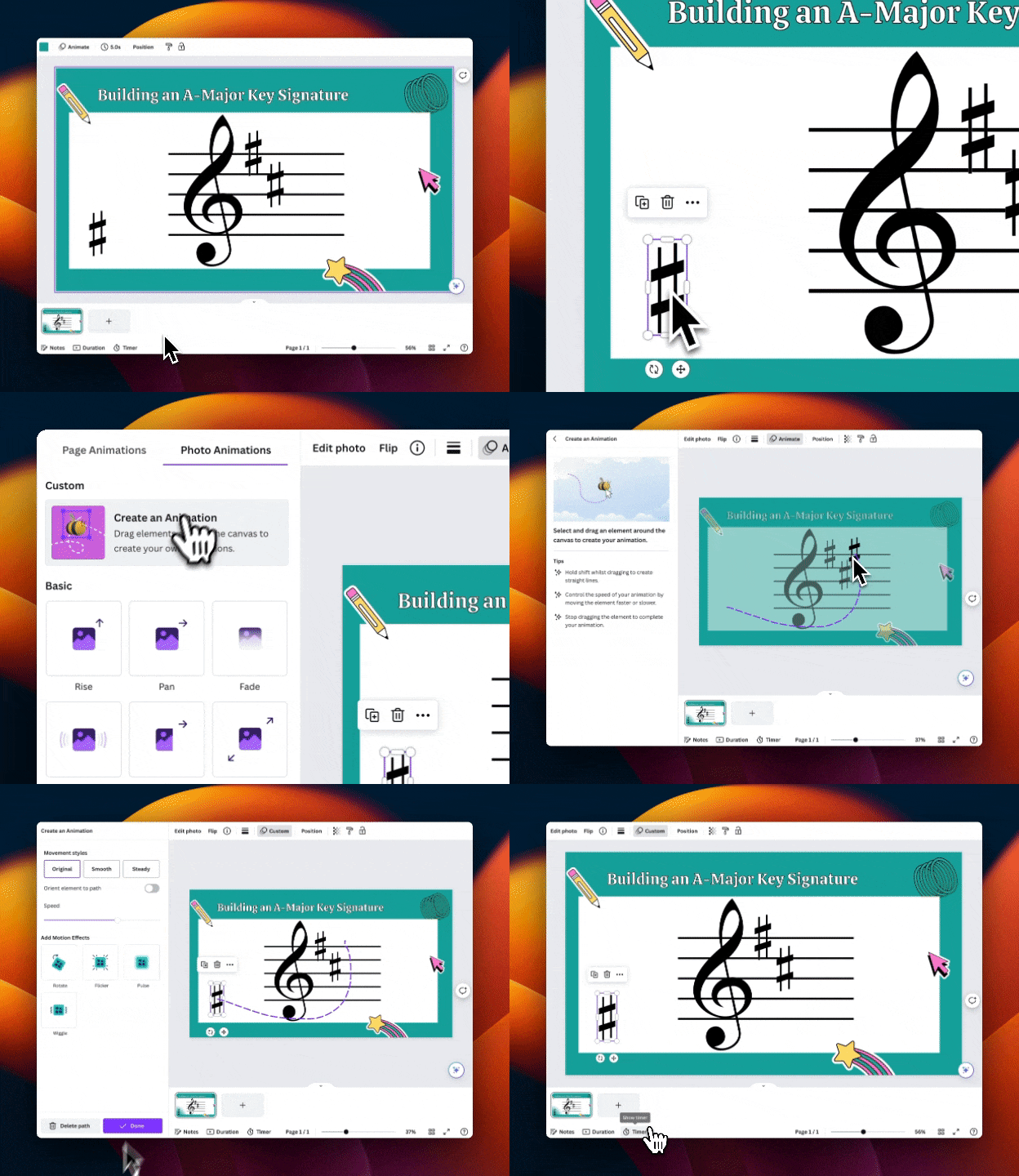
If you’re looking to not animate an entire presentation, but you need to highlight a specific element, Canva now allows you to create an animated ‘path’ of any element. What this means is that you can move a single object around the screen in a specific path and it will play that animation during your presentation.
How Canva’s Motion Path Animation Works
- Select an object within your presentation.
- Click ‘Animate’ in the toolbar
- Click ‘Create an Animation’
- Click and drag your element to the correct place on the screen.
- Preview your animation
- Add motion effects and clean up any jerky movements using the ‘Movement Styles’ and ‘Motion Effects’ sub-menu that automatically appear.
Canva’s AI Photo Editing
The last big time-saver is one tool with LOTS of in-built tools within it. Canva’s AI Photo Editing Tools allow you to do all kinds of things!
Here are a few features available inside of Canva’s AI Photo Editor. To access these tools, click on a photo (must be a photo and not clipart or an ‘element’) and select ‘Edit Photo’ from the toolbar.
- Magic Eraser – Remove something distracting from a photo.
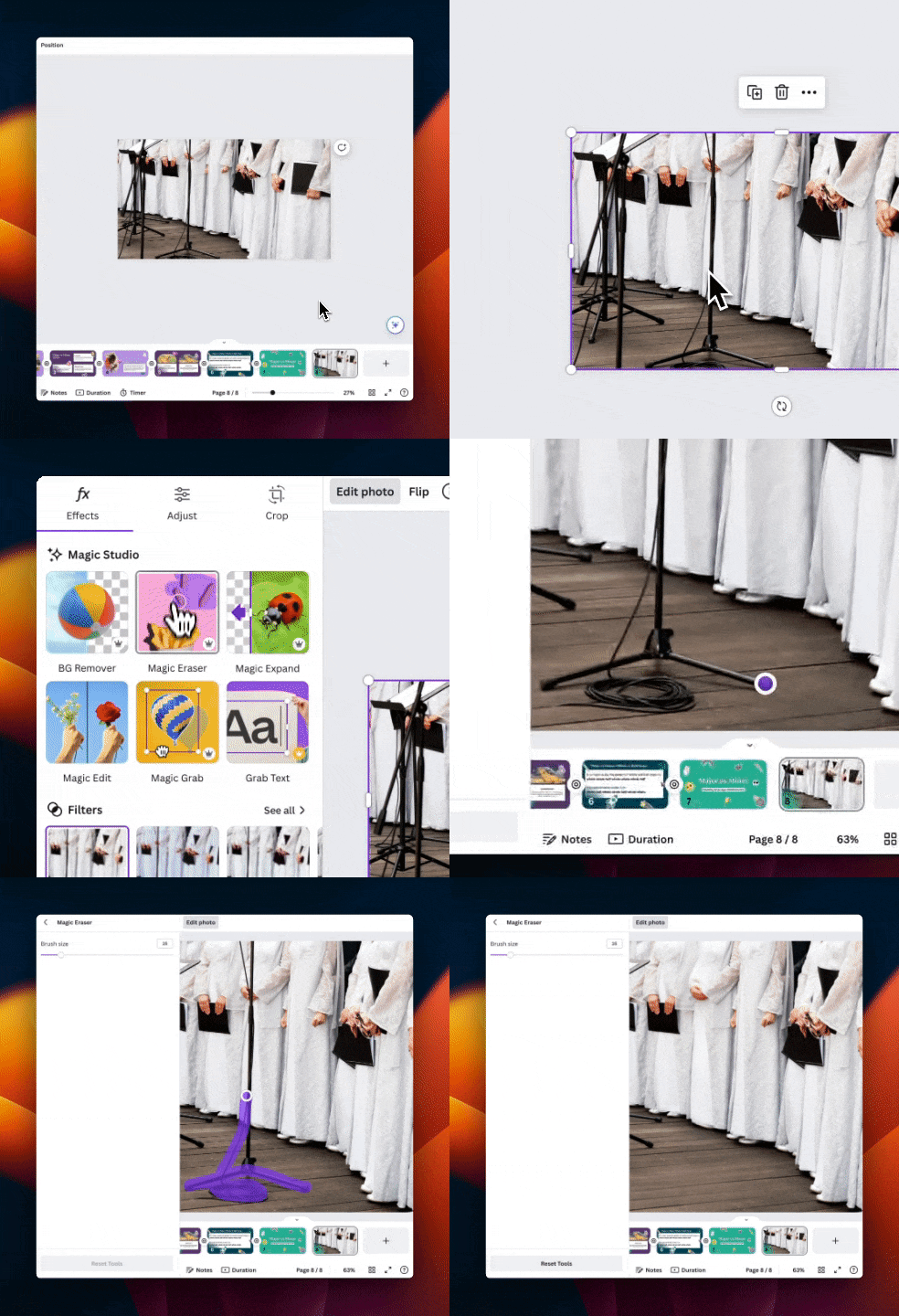
2. Magic Expand – expand the background of an image to fit in larger spaces or to change the aspect ratio (ex. a portrait-sized image into a square).

3. Magic Grab – Separate an object from its background to resize it, move it or use it as a piece of clipart in another design. Also replaces the background behind the removed object.

4. Magic Edit – Replaces a portion of a photo with something else.
Note: this is the one photo editing AI tool I came across that still takes quite a bit of practice to get right. It does well with simple edits with common objects but struggles with more specific edits and people.

Final Thoughts
There are so many cool AI Tools tools to play around with in Canva, especially these days! While most of the tools work incredibly well, some—primarily the AI-generated images—are very tricky to get right. Don’t get too frustrated with these tools as they’re constantly getting new updates and getting better! With practice you’ll discover what works best!
In Canva, while there is SO much to discover, sometimes it can definitely be overwhelming. If you’re a Canva newbie and would like some help mastering the basics and more advanced techniques to create resources for your classroom, we’d love to have you join us in the Create Beautiful Teaching Resources with Canva course.
What’s your favorite Canva AI tool? We’d love to hear your experience with them in the comments!
If you liked this, you may also enjoy:
About the author

Katrina Proctor is the Content Manager at Midnight Music and is also a former music teacher from Colorado, USA. She taught middle school music for nearly 10 years in northern Colorado, where her passion is low-income students in Title 1 schools. Katrina has taught 5th-8th grade chorus, advanced-level chorus, class piano, general music, band, and orchestra. She has her Bachelor’s Degree in Music Education & Master’s Degree in Music Education-Choral Conducting from the University of Colorado at Boulder. You can connect with Katrina on Facebook or via her website, She The Teacher.
Want more resources for music tech teachers?
Hello! I’m Katie Argyle – an Australian music technology trainer and consultant with a passion for helping music teachers through my business Midnight Music.
I’m a qualified teacher but no, I don’t currently teach in a school. I help teachers through my online professional development space – the Midnight Music Community– where there are tutorial videos, courses, links and downloadable resources.

I like to focus on easy ways to incorporate technology into what you are already doing in your music curriculum through a range of creative projects. I also run live workshops and have presented at countless conferences and other music education events.
If you want simple, effective ideas for using technology in music education, I would LOVE to help you inside the Midnight Music Community.